
A Non-Coder’s Guide to Building Your First Project with Claude Code.
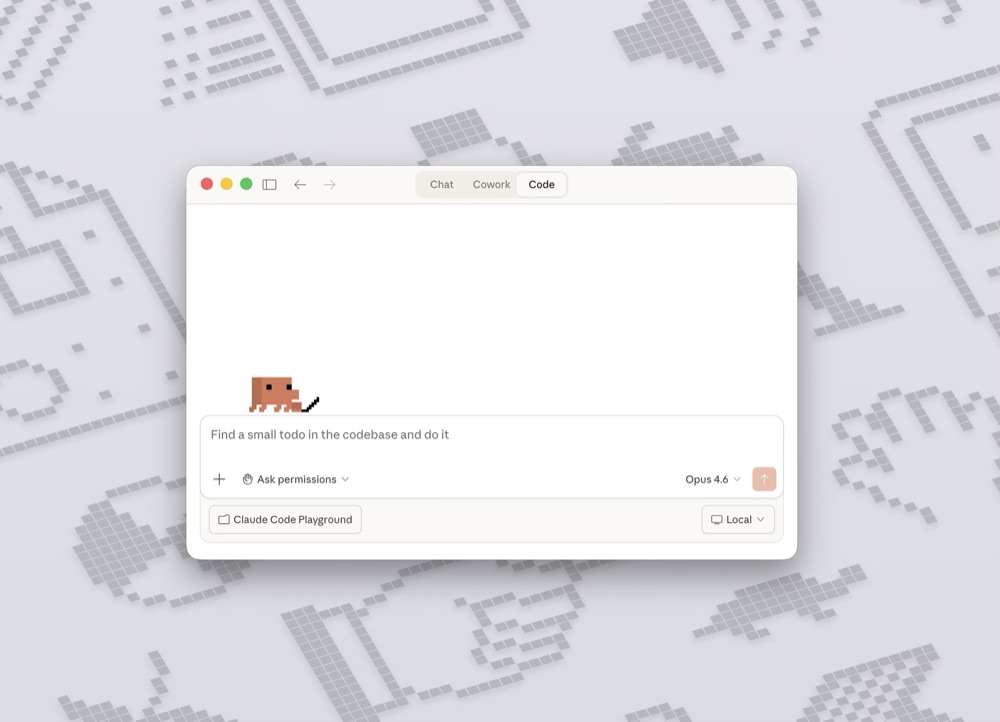
Last week, my friend and I built a website where you upload your selfie, pick a style, and get back a new version of yourself, generated by AI.
What would normally take us weeks was done in 24 hours.
Neither of us wrote a single line of code.
Claude Code did all the programming.
Lately I’ve been using Claude Code every day, and I want to show you how to start.
You don’t need to understand code.
You don’t even need to know what a terminal is.
By the end of this article, you’ll have Claude Code set up and your first project running.
Here’s what we’re gonna cover today:
- 🧠 What is Claude Code
- 🪜 Set it up (easy step by step instruction)
- ✨ Build your first project (a working app in 5 minutes)
- 🗂️ Save your work with Github
What is Claude Code and how is it different from prompting?
If you’re already prompting your favorite AI tool, this will feel familiar, but there’s one big difference.
Prompting is a conversation. Back and forth, where you’re actively waiting for results.
Claude Code is more like working with an assistant.
You give him a task, and he goes and does it.
After 15-30 minutes, he shows you what he’s done.
How to set up Claude Code for non-technical people.
1. Don’t use Terminal, download the Claude Desktop App instead.
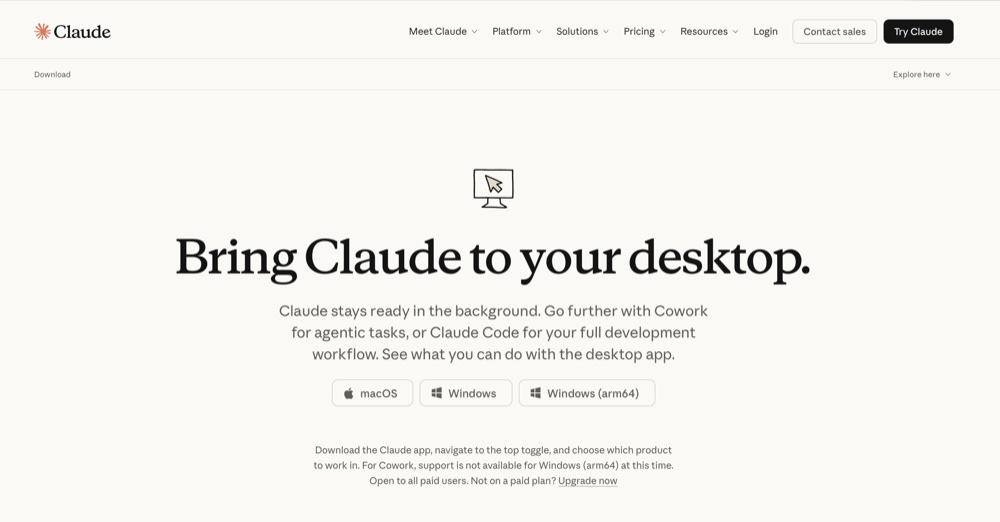
I would recommend starting here, not with the terminal version.
If you’re not a coder, you don’t want to learn a new environment on top of a new tool.
The desktop app makes it much, much easier.
Go here and download the app.
2. Start with the lowest plan.
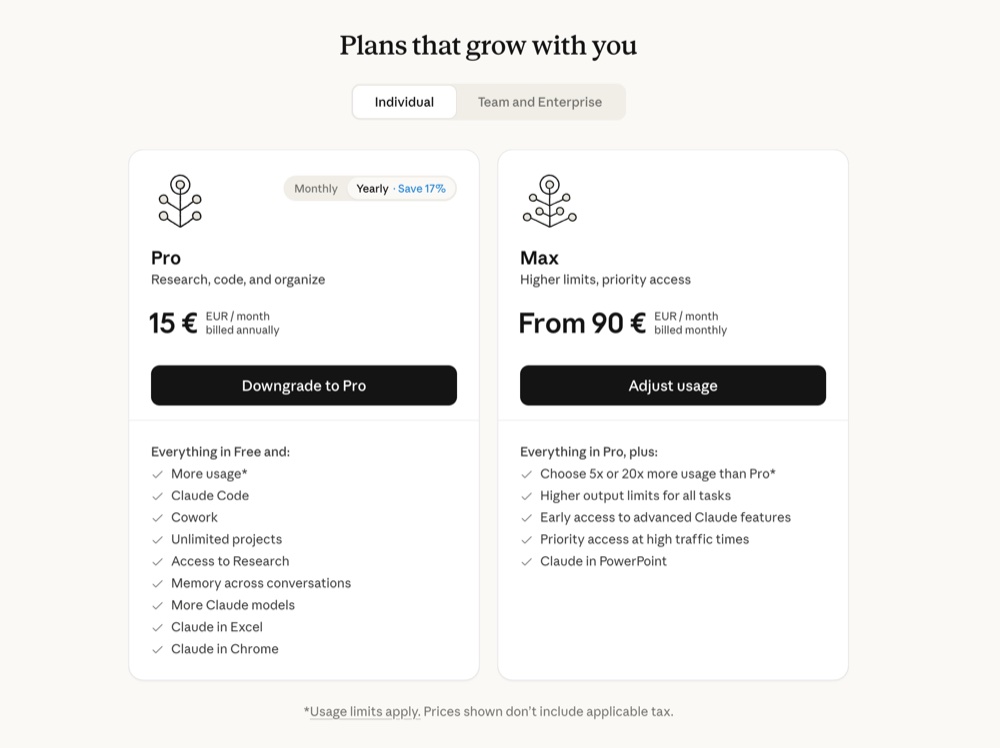
You will need a subscription.
For a start, and to play around, you can go with the 15 euro pro plan.
3. Open Claude Code in the app
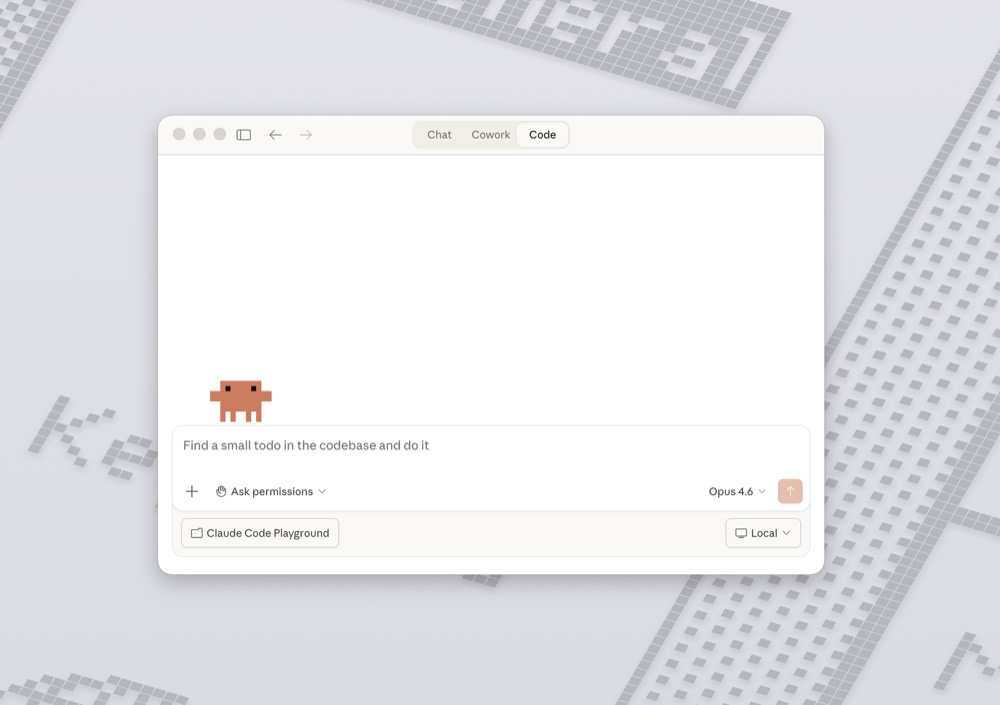
After you open the app, you will see 3 modes at the top. Choose “Code.”
This is Claude Code but inside the desktop app.
4. Create a folder and select it.
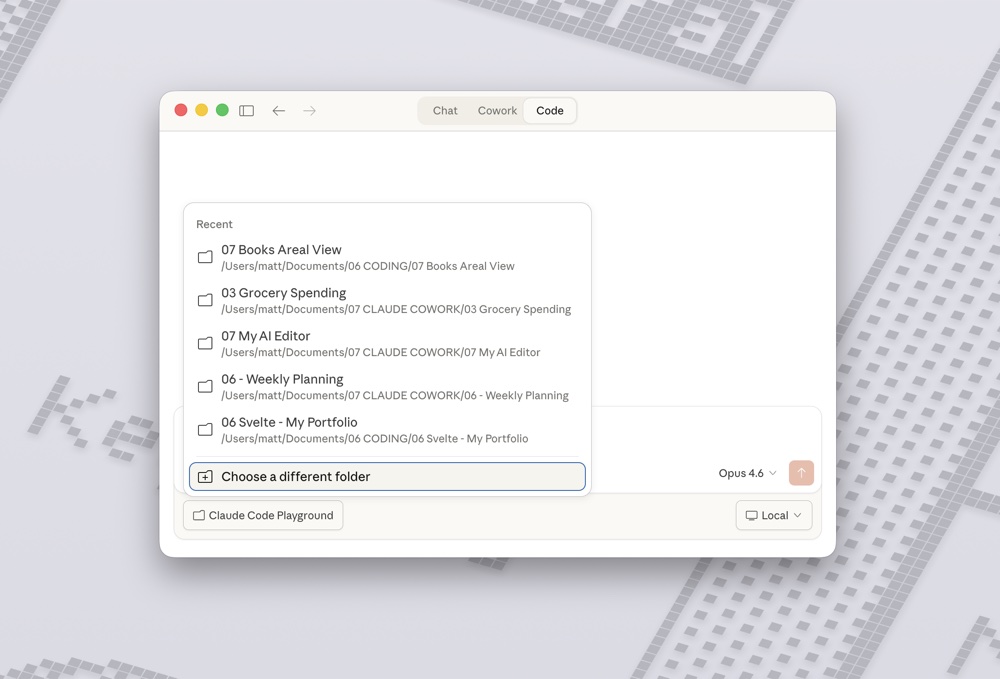
Create a folder on your computer. You can call it “Claude Code Playground.”
Select it in the app. Everything you build will live inside that folder.
Claude Code doesn’t have access to your whole computer.
It only has access to what you give it.
5. Set permissions to “ask me.”
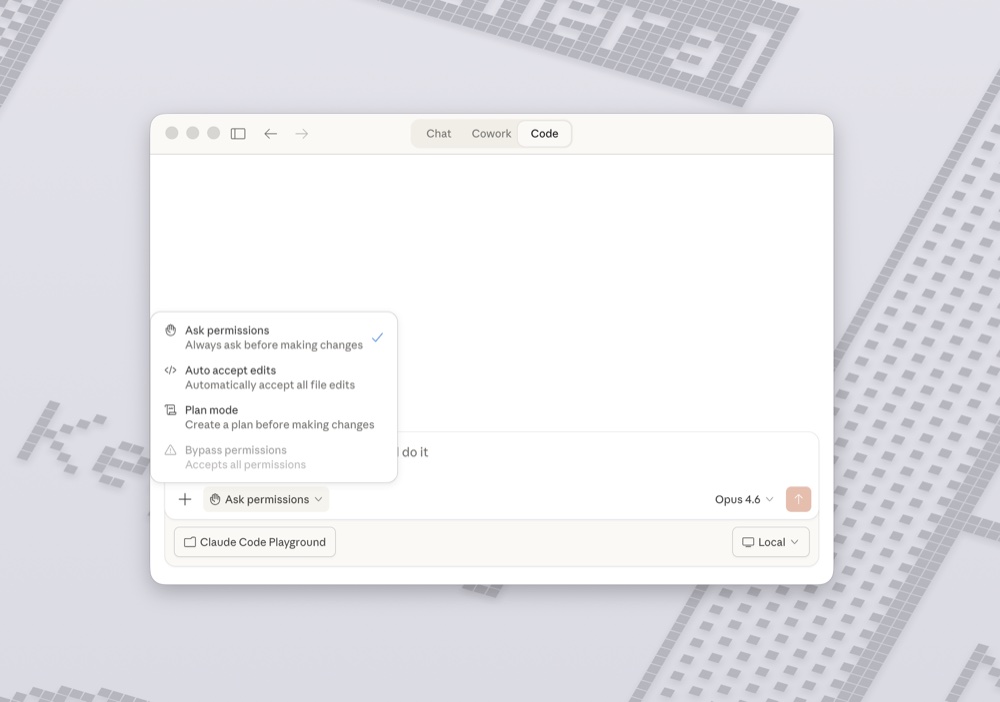
When Claude Code works for you, it needs to do things like create new files, make changes to existing ones, or save something to your computer.
Before each of those actions, it can ask for your approval, just like an app on your phone asks before accessing your camera or location.
You can give Claude Code full permissions, but I think starting with “ask me” is better.
You’ll get used to what it’s asking for, and you’ll understand what’s happening under the hood.
Loosen it later when you’re comfortable.
6. Talk to him like a normal person.
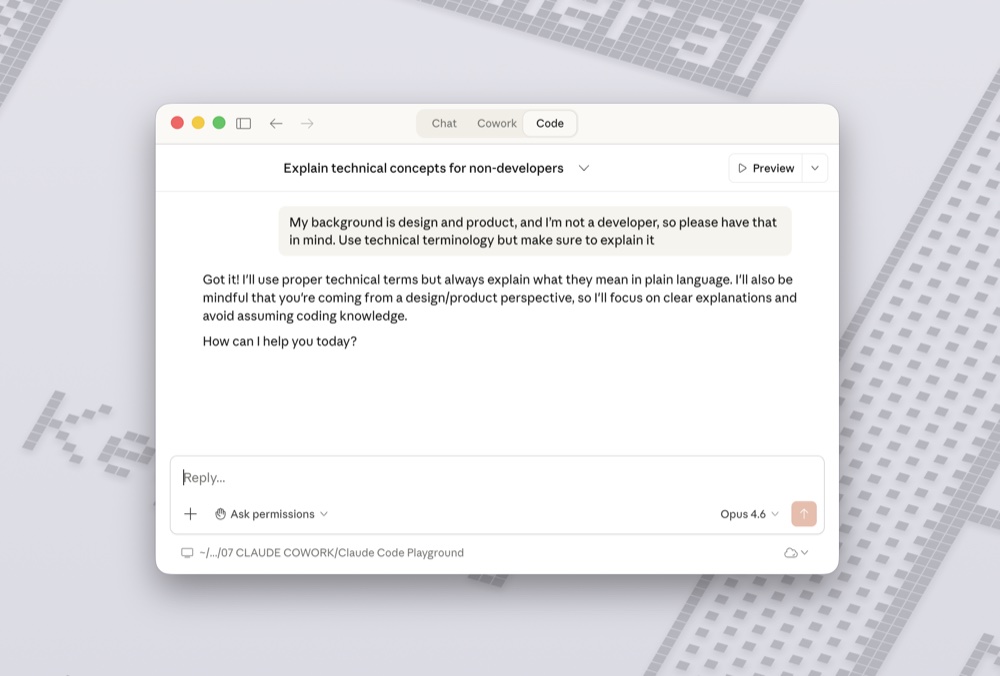
Think of Claude Code as a person who’s really good at his profession. And talk to him like you would with a friend.
I often say:
“My background is design and product, and I’m not a developer, so please have that in mind. Use technical terminology but make sure to explain it.”
That way I can learn technical aspects and get an easy explanation at the same time.
7. Ask for everything.
You know the saying “there are no stupid questions”?
With Claude Code, that’s actually true. You can ask him anything, and he will explain.
I do it all the time. Whenever I don’t understand something, I just ask.
Your first project: build a Pomodoro timer.
This is the project that got me hooked a year ago. It takes about 5 minutes.
Step 1:
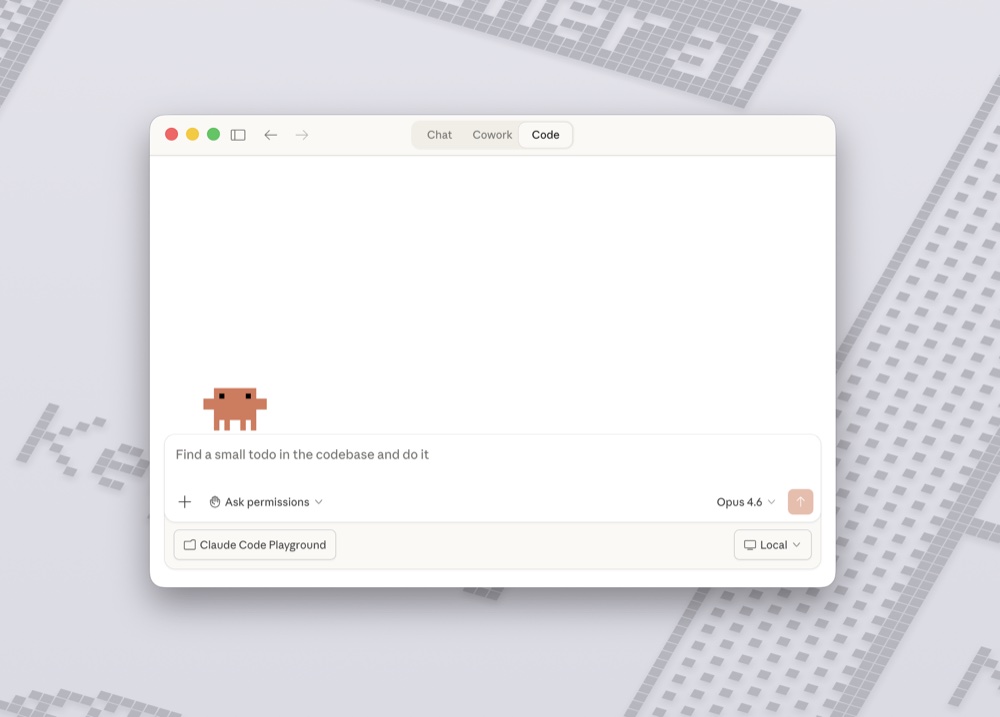
Open Claude Code and make sure our “Claude Code Playground” folder is selected.
Step 2:
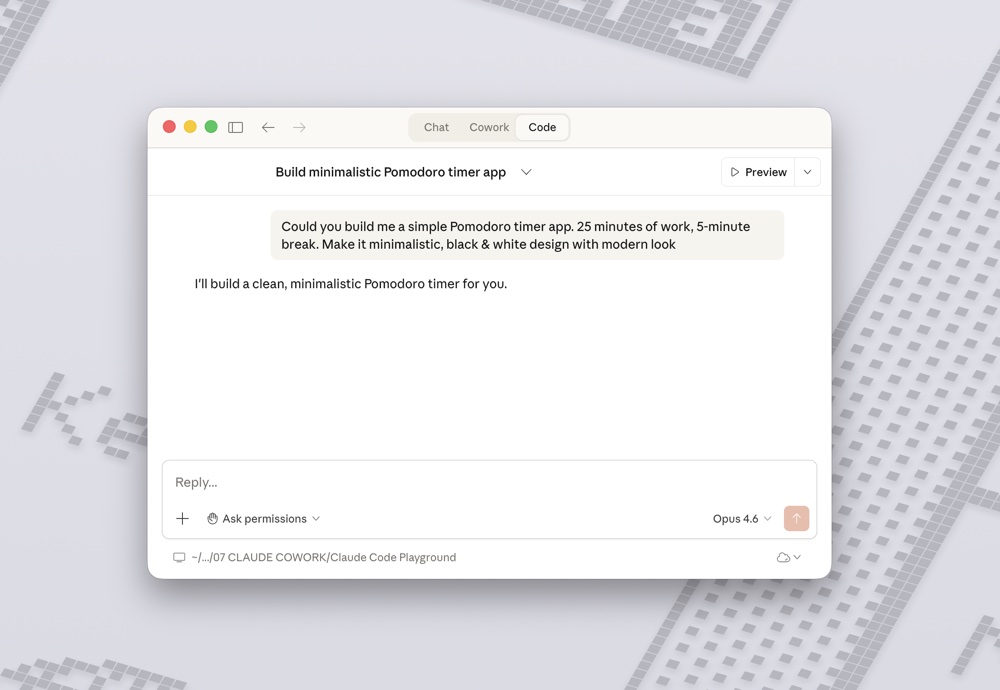
Type this prompt:
“Could you build me a simple Pomodoro timer app. 25 minutes of work, 5-minute break. Make it minimalistic, black & white design with modern look.”
Step 3:
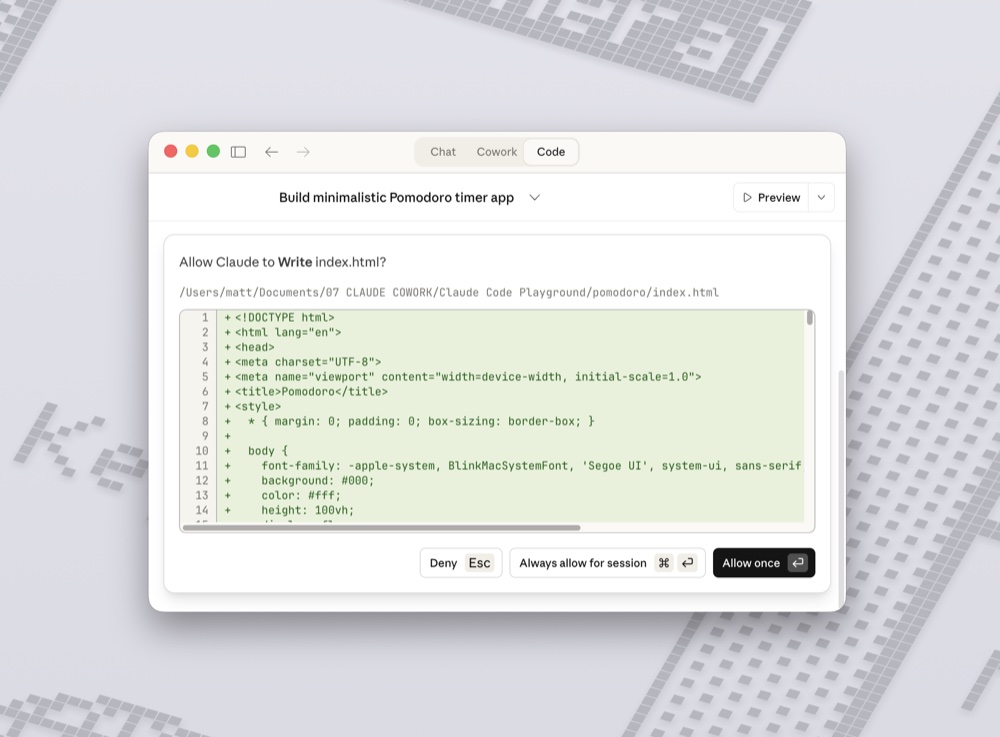
Watch it work. Claude Code will start creating files in your folder.
It might ask you for permissions along the way. Just say yes.
You’ll see it thinking through the design, writing the code, and setting everything up.
Step 4:
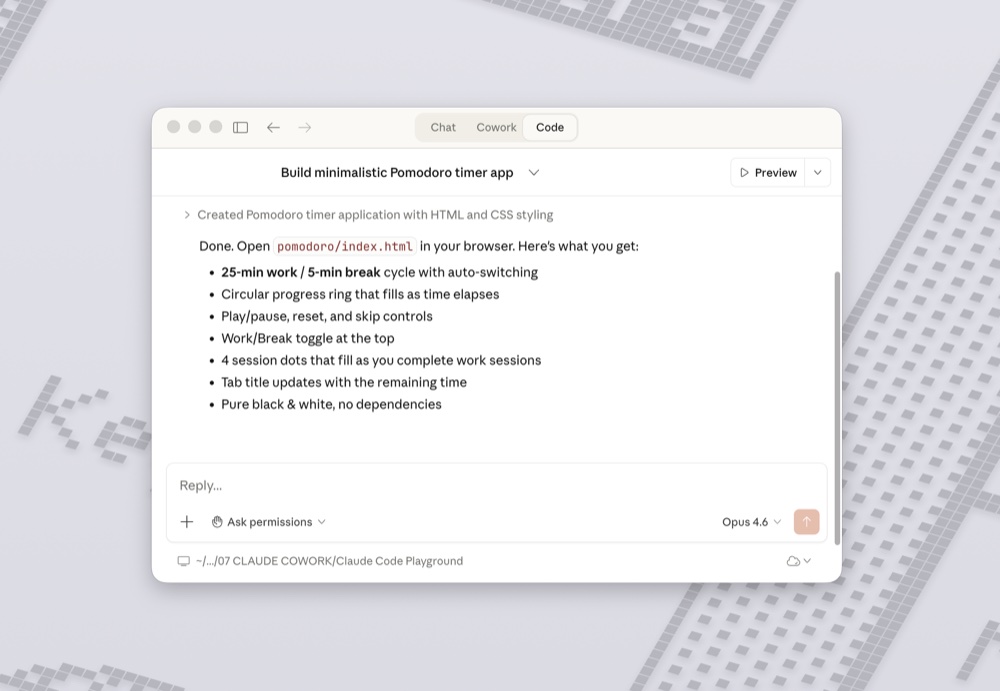
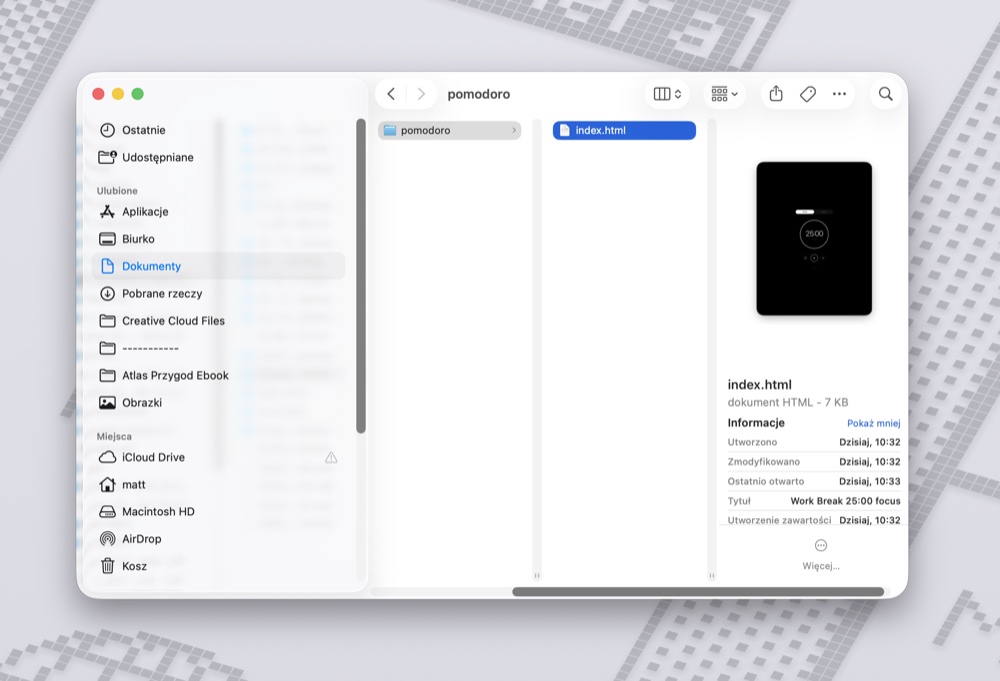
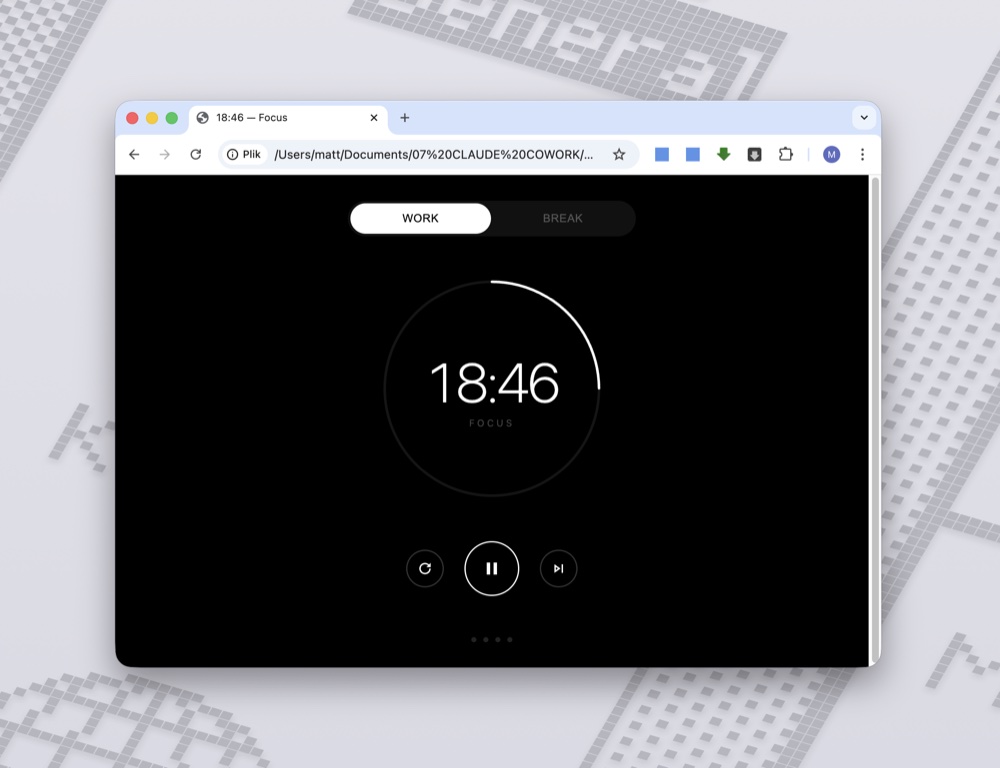
When it’s done, you can open your app.
Just go to your “Claude Code Playground” folder.
It will be an HTML file and it will open in your browser.
You have a working Pomodoro timer.
Step 5:
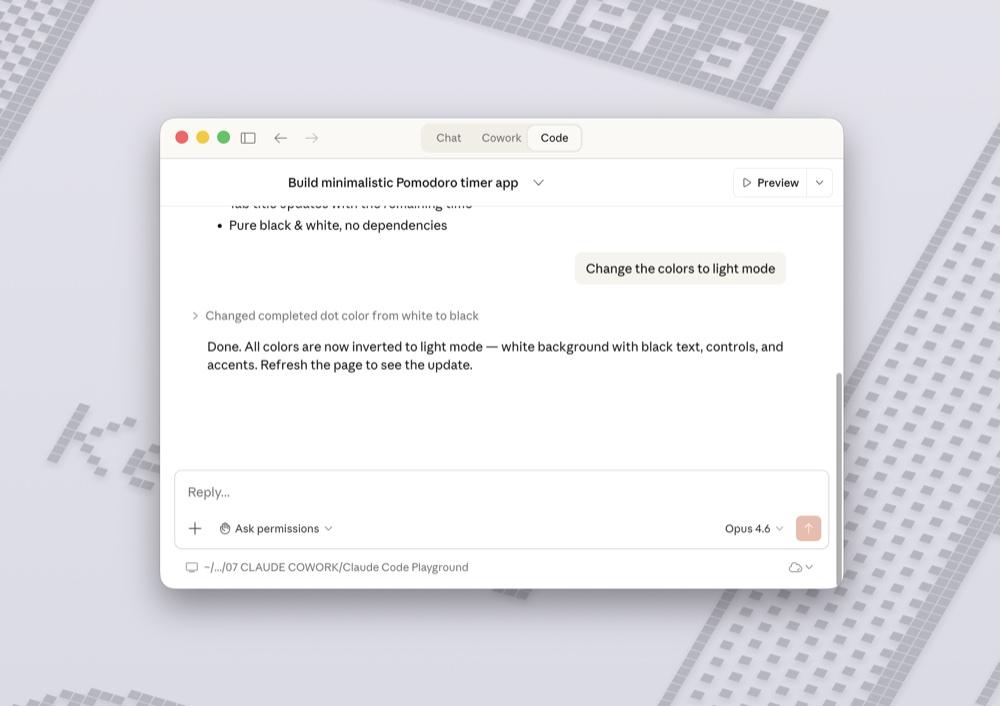
Now make it yours.
This is the fun part. Tell Claude Code what you want to change. For example:
“Change the colors to light mode.”
“Add a counter that tracks how many sessions I’ve completed today.”
“Make the break 10 minutes instead of 5.”
Each change takes minutes. You can simply explain what new feature you want.
Save your work with GitHub.
Once you build something, you’ll want to save it.
GitHub is like an online folder for your project files and it gives you the ability to save versions. Think of it like saving progress in a video game. You can always go back if something breaks.
For now, just create a free account and connect it to your project. That’s enough to start. You can ask Claude Code to help you out with that. He will explain you everything step by step.
Now, each time you create a new feature, you can back up the progress on GitHub.
If something breaks, and sometimes it does, you can always get back to the previous version of your app.
Originally published on Substack 👉 https://readwhitespace.substack.com/p/claude-code-for-beginners
Leave a Reply